You open a client's WordPress site before starting work, and the homepage sends you somewhere else. Your client in Bangladesh sees a defacement message, customers are asking whether checkout is safe, and your hosting panel still looks normal. The temptation is to delete the suspicious file and get the business online again.
WordPress malware removal is an incident-response job, not just a file-cleaning task. Preserve what happened, stop further access, remove the attacker's foothold, and verify the recovery before reopening the site. That approach matters especially on shared hosting, where your access and budget may be limited.
Table of Contents
- What Hacked WordPress Looks Like in Real Life
- Four Ways WordPress Sites Actually Get Compromised
- Containing the Site Before Touching Any Files
- Cleaning WordPress Core, Plugins, and Themes Properly
- Verifying the Site Is Actually Clean
- Hardening the Site So It Does Not Get Reinfected
- Knowing When to Call for Help and What to Report
What Hacked WordPress Looks Like in Real Life
Consider a hypothetical Bangladeshi freelancer checking a shop's homepage after a customer complaint. The shop loads normally while the freelancer is logged in, but a customer reports an unwanted redirect. Replacing the homepage template might remove the visible symptom without explaining who changed it or what else they accessed.
A hacked site can present several different problems. SEO spam changes what visitors or search engines receive; defacement replaces visible content; a webshell gives an attacker a way to issue commands through server-side code. An unauthorised administrator account can provide continued access without making the homepage look unusual.
For an accessible symptom checklist, PurpleCow Digital Marketing's resource on malware warning signs is a useful starting point. Treat symptoms as investigation leads, not a diagnosis of the entry point.
Separate appearance from attacker access
- Visible infection: Unexpected adverts, altered pages, injected scripts, or redirects tell you something needs investigating.
- Account compromise: An unfamiliar administrator or unexplained privileged login changes the scope from content repair to access recovery.
- Hidden persistence: Scheduled tasks, database injections, or backdoors can let an attacker return after the obvious damage disappears.
Bangladesh's national threat reporting gives this distinction practical context. BGD e-GOV CIRT recorded 23,919 Bangladesh IP addresses associated with at least one malware infection during 2024, alongside 46 reported web-defacement cases, 30 web-application vulnerability or attack cases, and 39 compromised-credential or system cases, according to its 2024 cyber-threat landscape report. These are national figures, not WordPress-specific infection totals.
Practical rule: A repaired homepage tells you that presentation has recovered. It doesn't tell you that attacker access has ended.
Your first response should therefore protect visitors and preserve evidence. Don't start editing theme files because they contain the most obvious injection. Record the affected page, the unexpected behaviour, and what you observed before changing anything.
Four Ways WordPress Sites Actually Get Compromised
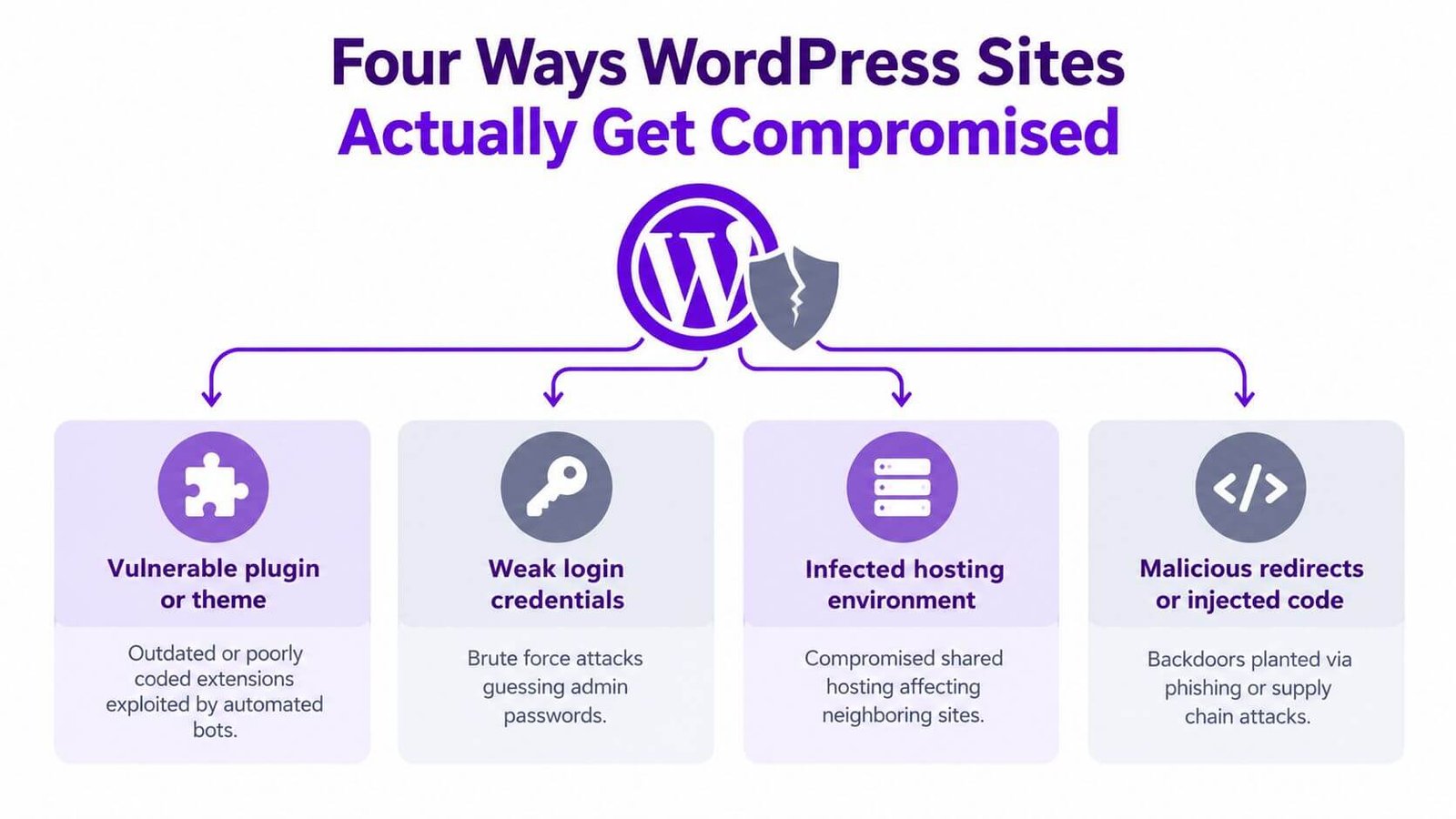
A reliable investigation separates entry point, persistence, and verification. The entry point explains how access began; persistence explains how the attacker stayed; verification establishes whether both have been addressed.
BGD e-GOV CIRT reported an approximately 71.39% increase in malware infections during 2023 and identified exploitation of remote-code-execution vulnerabilities and database services in its 2023 national cyber-threat report. The report covers the national environment, so it shouldn't be presented as a measurement of WordPress attacks.
The diagram provides a visual overview, but injected code and redirects should be understood as possible outcomes or footholds, not automatically as the original entry route.
Match the suspected route to the investigation
| Suspected route | Evidence to investigate | Cleanup implication |
|---|---|---|
| Outdated core, plugin, or theme | Installed versions, relevant request logs, changed extension files | Replace affected components and close the vulnerability |
| Nulled or unverifiable extension | Package origin, differences from a trusted release, unexplained bundled code | Don't reuse the package; investigate anything it could have installed |
| Stolen or weak credentials | Privileged logins, unfamiliar users, account changes | Recover access across the stack, not just WordPress |
| Hosting or server misconfiguration | Exposed backups, permissions, hosting users, server tasks | Ask the host to investigate beyond the document root |
A leaked password is a different problem from a vulnerable plugin. The guide to Gmail password exposure and data leaks provides relevant account-security context, particularly when the same email account controls password resets.
Vulnerability and malware aren't interchangeable. The BDRIS incident exposed approximately 50 million citizens' personal details and was described by officials as a technical weakness rather than direct hacking, as reported in TechCrunch's coverage of the exposed registration data. A clean malware scan wouldn't resolve an exposed endpoint or public backup.
Updating everything immediately may be appropriate for an unaffected site. On a compromised site, first record the installed versions and preserve the files, otherwise you can overwrite useful evidence about the suspected route.
Containing the Site Before Touching Any Files
Containment should leave you with a preserved incident, restricted public access, and recovered control over credentials. On shared hosting, ask support for assistance if you can't export the database, access logs, or restrict the site independently of WordPress.
The sequence below assumes you can preserve the site promptly. If visitors are actively receiving malicious content or data is being exposed, ask the host to block public access immediately while preserving the account. Evidence preservation mustn't become a reason to leave people exposed.
Follow the pre-cleanup sequence
Capture the files and database. Export the database and archive the complete document root, including hidden configuration files. Download copies to storage outside the affected hosting account and confirm that the archives open. Label them as compromised evidence, not recovery backups.
Restrict access outside the infected application. Prefer hosting-level suspension, web-server restrictions, or WAF rules where available. A WordPress maintenance screen alone shouldn't be your containment boundary. Keep access only for the people performing recovery.
Recover credentials from a clean device. Change hosting-panel, SSH/SFTP, WordPress administrator, database, and integration credentials. Revoke application passwords, API tokens, and active sessions rather than assuming a password change invalidates every access method. Coordinate database credential changes with the reviewed configuration so recovery doesn't introduce a connection failure.
Record the incident timeline. Save discovery time, affected URLs, screenshots, suspicious filenames, account changes, and relevant logs. Preserve available timestamps and file hashes before editing. Note the timezone used by each log.
Keep evidence separate from restoration
Don't log into sensitive accounts from a laptop you suspect is compromised. Don't restore an old backup onto the live site merely to see whether it works, and don't open suspicious PHP through a public browser request.
Preserve the compromised copy for investigation. Build the recovery from trusted material, not from an archive whose only advantage is that it exists.
The distinction has local relevance. In its report on attacks against government sites, The Daily Star reported that BGD e-GOV CIRT had detected malware activity in an open backdoor on Biman Bangladesh Airlines' server two days before the attack. It also reported a ransom demand of approximately $5 million and around 100 GB of data held hostage.
That wasn't a WordPress incident. Its relevance is the response principle: preserve evidence of attacker access before an improvised repair removes the trail.
Cleaning WordPress Core, Plugins, and Themes Properly
Replace untrusted software rather than trying to make it look clean. Manual inspection remains useful for identifying the incident's scope, but deleting a suspicious function doesn't establish that the rest of an infected package is trustworthy.
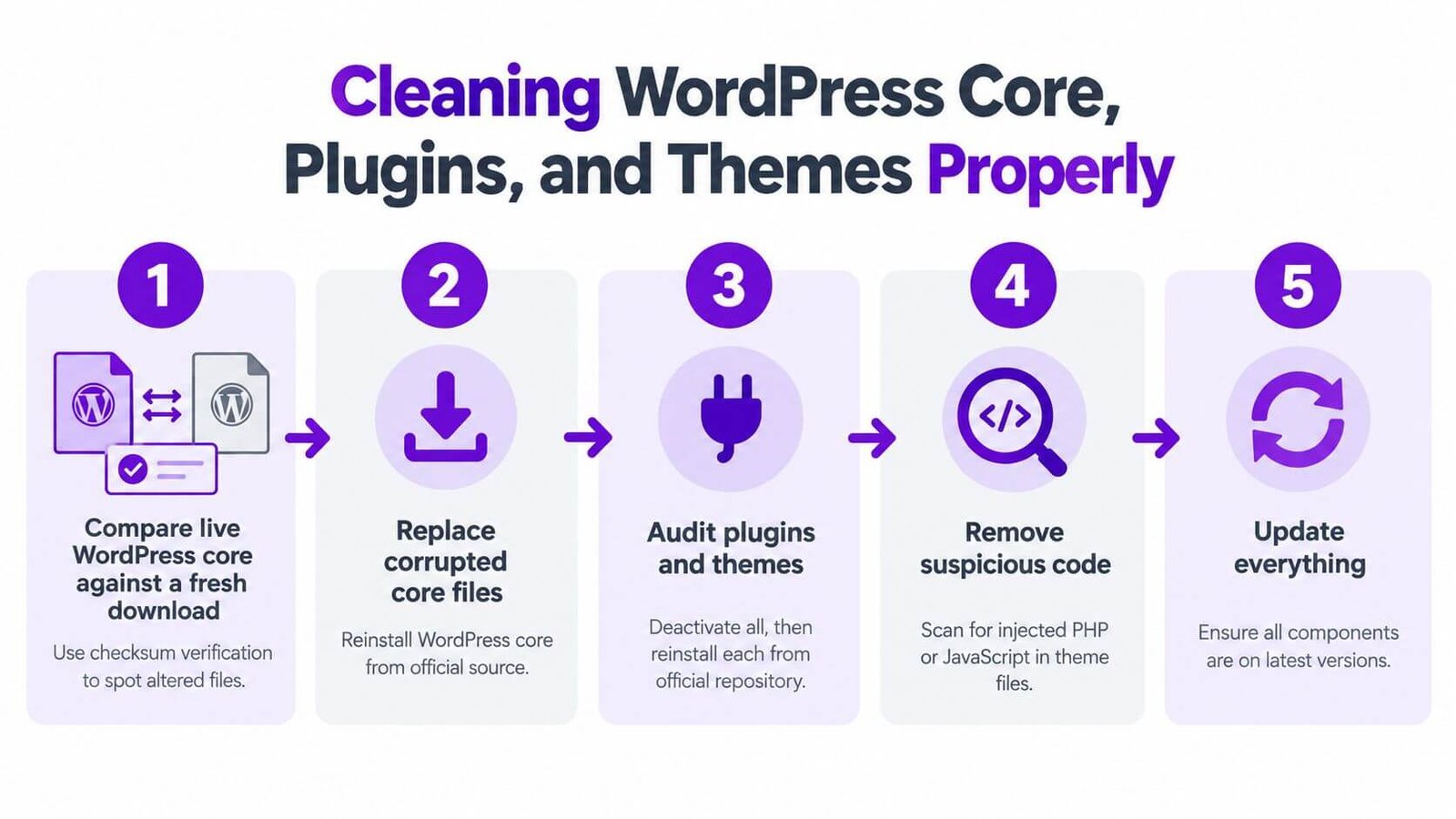
Use the workflow below as an overview. Configuration, custom code, and stored content still need separate review.
Rebuild the executable components
Compare the preserved installation against a verified clean WordPress package matching the recorded version. This helps identify modified and additional files before rebuilding with a supported, patched release.
Replace core directories and core root files from official packages. Uploading clean files over existing directories can leave unauthorised extras behind. Retain wp-content and configuration only for review, not because they are automatically safe.
Replace plugins and themes from the official repository or the developer's verified distribution channel. For premium extensions, the guide to buying original WordPress plugins in Bangladesh helps you assess the source before reinstallation. Quarantine custom themes and child-theme modifications until someone can review them against trusted development copies.
- Uploads and unfamiliar code: Investigate executable files in
wp-content/uploads, unknownmu-plugins, and unexpected files elsewhere inwp-content. A plausible filename isn't proof of legitimacy. - Configuration: Review
wp-config.phpand.htaccessfor unexplained includes, constants, and rewrite rules. Preserve legitimate host-specific settings rather than replacing configuration blindly. - Hosting persistence: Ask support to inspect account-level cron jobs and server-side settings you can't see from the WordPress dashboard.
Review stored content before restoring it
Inspect administrator accounts, database options, posts, metadata, and scheduled WordPress events. Search for unexpected external URLs, injected scripts, obfuscated PHP markers, and anomalous serialised options. Search matches are leads, not automatic deletion targets: legitimate content and extensions may use scripts or encoded values.
Don't edit serialised settings with indiscriminate search-and-replace. Have a developer handle uncertain database changes, and retain a pre-edit export so mistakes can be investigated and reversed.
A walkthrough can supplement the process, but it can't verify your particular installation.
The CIRT threat-landscape document supports a layered recovery approach involving trusted component replacement, persistence inspection, credential recovery, and validation. For a small site with little customisation and unverifiable extensions, a controlled rebuild can be more manageable than cleaning in place.
Test compatibility in an access-restricted recovery environment. Check forms, layouts, checkout, and integrations before importing validated content or reopening traffic. Never assume a backup predates the compromise merely because it predates the visible defacement.
Verifying the Site Is Actually Clean
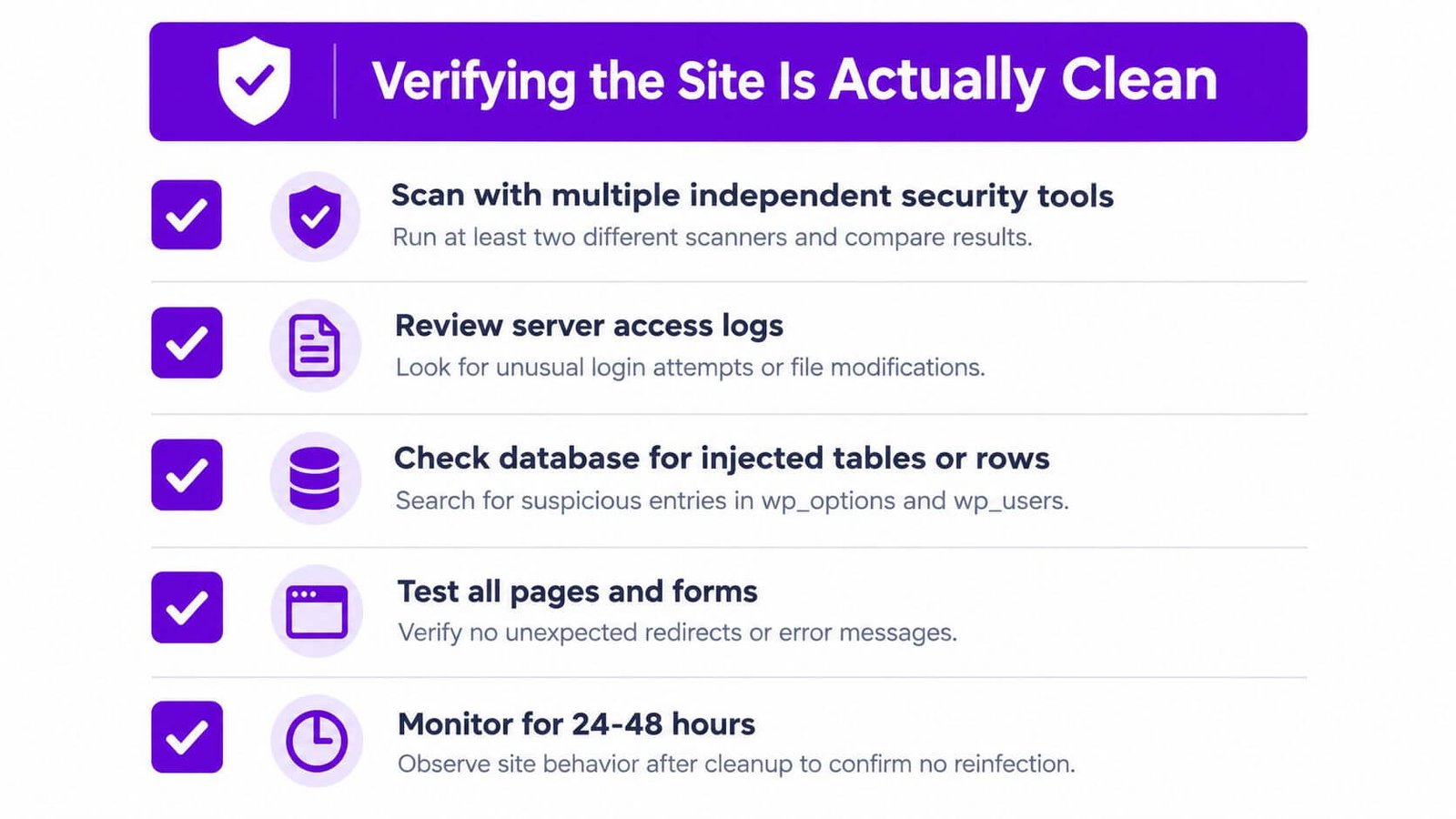
Verification requires corroborating evidence. A filesystem scan, a database review, and an external visitor test answer different questions. Don't turn one reassuring result into a declaration that the whole environment is clean.
The checklist below summarises the checks, but a short period of normal behaviour isn't proof of eradication.
Require a clean-or-not record
- Privileged accounts: In phpMyAdmin, inspect the installation's users table and corresponding user metadata. Account names alone don't establish administrator status; review capability metadata using the actual table prefix. Confirm every privileged account with the owner.
- Scheduled execution: Reconcile WordPress events and hosting cron entries with installed functionality. Investigate any task whose purpose or code target you can't explain.
- File integrity: Compare rebuilt components with trusted packages and record a baseline. If
.htaccesschanges after a request, preserve the changed copy and investigate the process rewriting it. - Database content: Review options and post content for unexpected destinations, injected markup, and unexplained settings. Confirm suspicious entries in context rather than treating a keyword match as conclusive.
- External behaviour: Test logged out, on mobile and desktop, and follow affected pages through their redirect chains. Inspect browser Network activity for unexpected JavaScript requests.
- Logs and reputation: Review relevant access and error logs, run independent internal and external scans, and check Google Search Console's Security Issues report.
Decide whether relaunch is defensible
Distinguish ordinary redirects from unexplained ones, and distinguish cached search results from current malicious output. If Search Console identifies a security issue, verify that the underlying issue is resolved before submitting the available review request.
Relaunch threshold: Every unexplained privileged account, executable file, or recurring configuration change is an unresolved finding, not a cosmetic inconvenience.
Use an observation window appropriate to the incident. The Bangladesh remediation guidance and threat analysis includes tracking zero unauthorised file changes during a 7–14-day observation window, alongside patch coverage, privileged-account MFA, and tested restoration.
Record who performed each check and what evidence supports closure. If payment information, customer records, or email credentials may have been accessed, technical cleanup isn't the end of the incident. Keep the evidence and escalate the breach assessment rather than declaring success solely because scans are clean.
Hardening the Site So It Does Not Get Reinfected
A security plugin can assist with monitoring and protection, but it can't substitute for closing the investigated entry point. Choose controls that the site owner can maintain after the immediate pressure has passed.
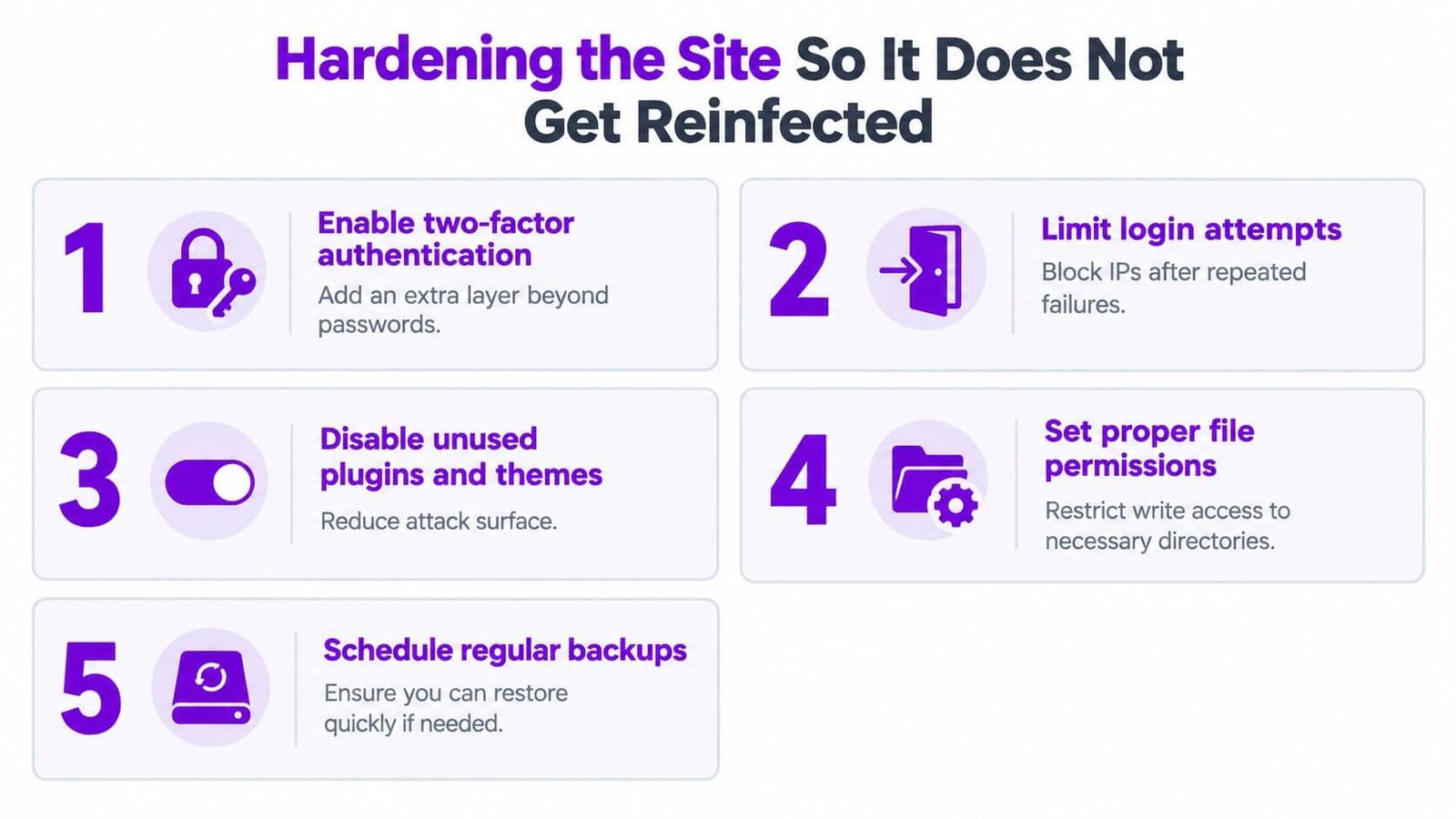
The visual is a useful reminder, with an important adjustment: remove unused plugins and themes entirely, rather than merely leaving them disabled.
Choose controls with workable trade-offs
| Control | Practical decision |
|---|---|
| Unique passwords and MFA | Apply to every privileged account; arrange secure recovery access |
| Least-privilege roles | Give writers and assistants only the access their work requires |
| Restricted administration | Consider an identity-based access layer when changing networks makes IP restrictions impractical |
| Patching | Use a regular maintenance window, with urgent treatment for relevant security fixes |
| Independent backups | Keep off-site copies protected from deletion through the hosting account |
Freelancers working from different locations should assess access restrictions before deploying them. The Cloudflare Zero Trust administration guide provides relevant setup guidance; test the recovery path before enforcing restrictions on a client site.
For extension-focused reading, Excellorix's guidance on how to protect WordPress plugins from threats complements a policy of verified sourcing, updates, and removal of unnecessary components.
HTTPS is transport protection, not malware removal. The Daily Star discussed inadequate SSL security in its analysis of Bangladesh's IT infrastructure weaknesses. After recovery, check the certificate, HTTPS redirection, mixed content, and cookie security with your host.
Don't apply arbitrary file permissions or server rules without checking the hosting environment. A restriction that breaks checkout or prevents updates needs adjustment, not abandonment of the security objective.
Knowing When to Call for Help and What to Report
Contact hosting support when suspicious activity extends beyond WordPress, logs are unavailable, or you can't inspect server tasks. Ask for account-wide investigation rather than another homepage scan.
Engage professional incident response when backdoors return, sensitive data may be affected, or you can't establish the entry point. A limited-budget owner can reasonably perform preservation and containment without taking responsibility for uncertain code analysis.
Prepare a useful incident report
- Timeline: Record discovery, last known normal operation, and containment actions.
- Evidence: Provide affected URLs, filenames, hashes, relevant log excerpts, and account changes through a secure channel.
- Impact: Explain affected services, potentially exposed information, and remaining uncertainty. Don't send passwords or customer databases in ordinary email.
The National Cyber Security Index's Bangladesh profile records nationwide CERT responsibility and an official BGD e-GOV CIRT reporting channel as of July 2025. BDCERT also serves the internet community through an incident-reporting contact. Confirm the appropriate official channel before submitting sensitive material, and obtain advice on notifications where legally required.
Maintain recovery readiness
Adopt a 90-day maintenance rhythm as a recommendation, not a guarantee: weekly patch windows, monthly full backup verification, and quarterly access reviews and credential rotation. Add an annual tabletop exercise covering who isolates the site, retrieves backups, contacts hosting, and approves relaunch.
If malware returns, reopen the investigation. Repeating the same deletion isn't a recovery strategy; it's evidence that something remains unresolved.
MDTechBD offers practical guides to WordPress administration, original plugin sourcing, hosting, and access security. Visit MDTechBD to build a maintenance checklist around your WordPress malware removal recovery and choose verifiable components before your next update.
Generated with Outrank app